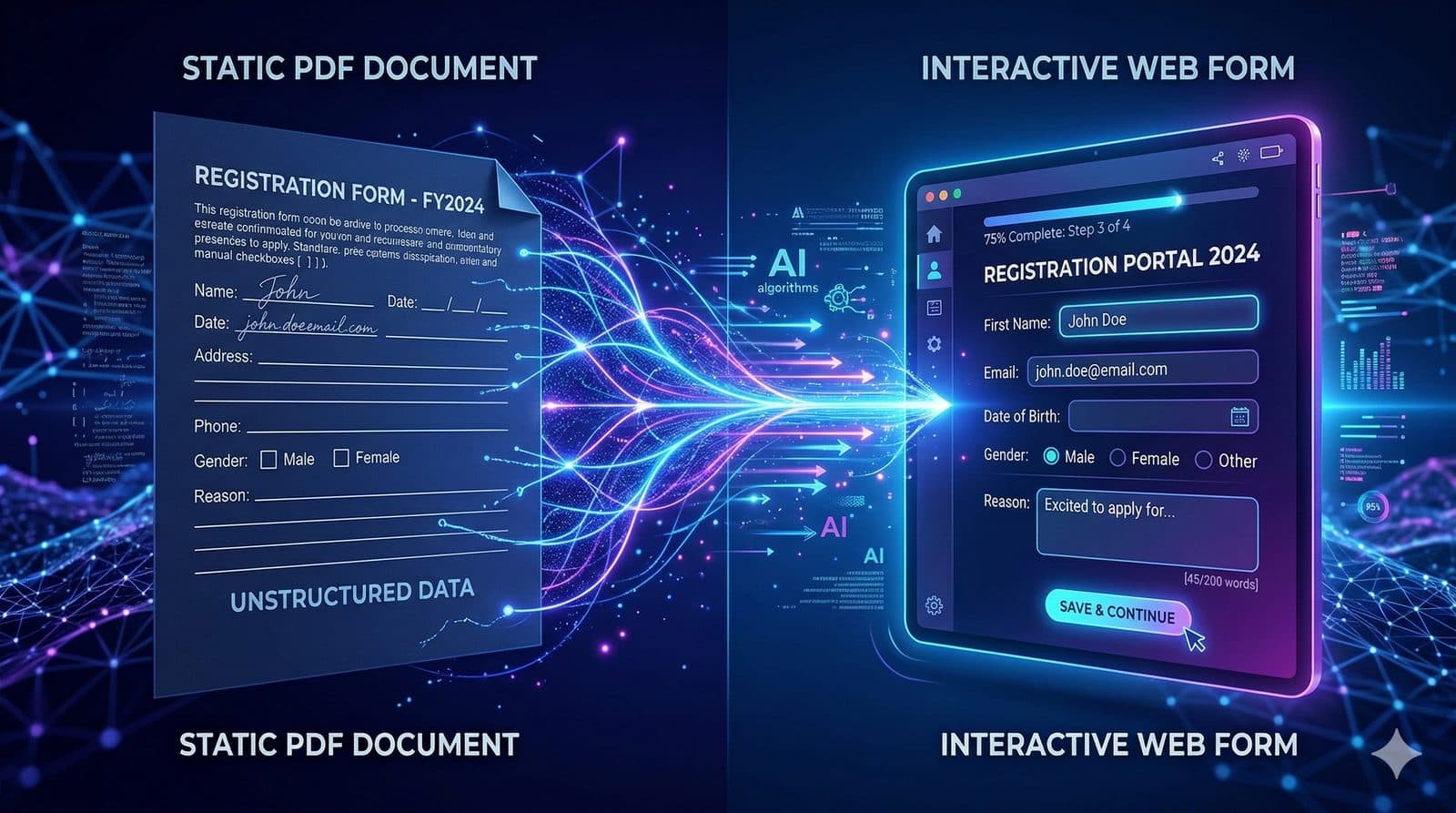
How to Convert a PDF to a Fillable Form with AI
Turn static PDFs into interactive, fillable online forms using AI-powered document parsing. A step-by-step guide with tips for editing, publishing, and comparing to manual alternatives.

Founder & CEO
Software engineer and entrepreneur with 10+ years building B2B SaaS products. Founded Formalingo to eliminate manual document workflows with AI.
Every organization has them: PDF forms that were designed for print, distributed as email attachments, and filled out by hand or with clunky PDF annotation tools. They work, technically — but the experience is poor for respondents, the data is unstructured, and extracting information from completed PDFs requires manual effort or expensive OCR software.
Converting a PDF into an interactive, fillable online form solves all of these problems. Respondents get a clean, mobile-friendly experience. You get structured, validated data that flows directly into your systems. And with AI-powered document parsing, the conversion itself takes minutes instead of hours.
This guide walks through the entire process using Formalingo's AI form builder — from uploading your PDF to publishing a live, shareable form.
Why Convert PDFs to Fillable Forms?
Static PDFs were designed for a world of printers and filing cabinets. Using them for data collection in a digital workflow creates several problems:
Poor respondent experience. Filling out a PDF on a phone is an exercise in frustration. Pinching, zooming, trying to tap into tiny form fields — it is a hostile user experience that drives abandonment. Online forms are responsive by default, adapting to any screen size.
Unstructured data. When someone fills out a PDF and emails it back, the data is trapped inside that file. To use it, someone has to manually read each submission and transcribe the answers into a spreadsheet, CRM, or database. This is slow, error-prone, and does not scale.
No validation. A PDF cannot enforce that an email field contains a valid email address, that a required field is actually filled in, or that a date is in the correct format. Online forms validate input in real time, catching errors before submission.
No analytics. With PDFs, you have no visibility into how many people opened the form, where they dropped off, or how long completion takes. Online forms provide real-time analytics on every aspect of the respondent journey.
Version control headaches. When you update a PDF form, you have to redistribute it and hope that no one fills out an old version. Online forms have a single URL — update the form, and everyone sees the latest version.
How AI-Powered PDF Parsing Works
Traditional PDF-to-form conversion requires manually recreating each field — reading the PDF, deciding what field type each blank represents, and building the form from scratch. AI parsing automates this process.
When you upload a PDF to Formalingo, the AI performs several analysis steps:
- Text extraction — the document content is extracted while preserving the structural hierarchy (headings, sections, paragraphs, labels).
- Field identification — the AI identifies form fields based on contextual clues: blank lines following labels, checkbox indicators, signature lines, date formats, and other conventions.
- Type inference — for each identified field, the AI determines the appropriate question type. A blank after "Email:" becomes an email field with validation. A blank after "Date of birth:" becomes a date picker. A group of checkboxes becomes a multi-select question. A line marked "Signature" becomes a digital signature field.
- Structure mapping — the AI groups related fields into sections that mirror the document's original organization. A "Personal Information" heading in the PDF becomes a section in the form, with the relevant fields grouped underneath.
- Form generation — the parsed structure is converted into a live, interactive form with all field types, validation rules, and sections configured automatically.
The result is a complete form that mirrors the intent of the original PDF but delivers a modern, interactive experience. For a deeper look at how AI document parsing works, see our technical guide.
Step-by-Step: Converting a PDF to a Fillable Form
Step 1: Upload Your PDF
From your Formalingo dashboard, create a new form. Open the AI chat panel in the form editor and upload your PDF file. The platform accepts standard PDF files of any length.
For best results, use PDFs with clear text content rather than scanned images. If your PDF is a scan of a paper form, OCR quality depends on the scan resolution — 300 DPI or higher produces the best results.
Step 2: Review the AI-Generated Form
After processing, the AI presents a complete form based on the PDF content. Review the generated form carefully:
- Check field types. Verify that the AI assigned the correct question type to each field. A phone number field should be a phone type (not short text), a yes/no question should use the yes/no type (not a dropdown), and so on.
- Review section structure. Confirm that the sections match the logical groupings in your original document. Merge or split sections as needed.
- Verify required fields. The AI makes its best judgment about which fields should be required, but you may need to adjust based on your specific requirements.
- Check field labels. Ensure that question labels are clear and complete. The AI extracts labels from the PDF content, but some may need minor rewording for clarity.
Step 3: Edit and Enhance
This is where the online form surpasses the original PDF. Take advantage of capabilities that a static document cannot offer:
Add conditional logic. If certain questions are only relevant based on previous answers, set up rules to show or hide them dynamically. This is especially valuable for forms that serve multiple respondent types — an application form that adapts based on whether the applicant is domestic or international, for example.
Improve field validation. Add validation rules that the PDF could not enforce: email format validation, minimum and maximum values for number fields, character limits for text fields, and required-field enforcement.
Add descriptions and help text. Include explanatory text beneath questions to guide respondents. In a PDF, this context is often missing or crammed into small print. In an online form, you have space to be clear.
Reorder questions. The optimal order for filling out a paper form is not always the optimal order for an online form. Online forms benefit from starting with easy, low-commitment questions (name, email) before moving to more complex or sensitive ones.
Step 4: Customize Branding
Apply your organization's branding to the form — logo, colors, welcome screen, and thank-you message. This transforms a generic form into a professional, branded experience that respondents associate with your organization rather than with a third-party tool.
Step 5: Publish and Share
Switch the form from Draft to Published. Share the form URL with respondents via email, embed it on your website, or generate recipient-specific links for tracking individual responses.
The form is now live — respondents interact with it on any device, their answers are validated in real time, and submissions flow into your dashboard as structured data.
AI Conversion vs. Manual Alternatives
To put the AI approach in perspective, here is how it compares to the alternatives:
Manual recreation involves looking at the PDF and rebuilding the form field by field in a form builder. For a 20-field form, this takes 20 to 40 minutes. For a 50-field form with multiple sections, it can take over an hour. And it is entirely manual — no validation, no type inference, no structural analysis.
PDF form editors like Adobe Acrobat can add fillable fields to an existing PDF. This preserves the PDF layout but retains all the limitations of the format: poor mobile experience, no conditional logic, no real-time validation, no analytics, and data remains trapped in individual PDF files.
AI-powered conversion analyzes the document, identifies fields, infers types, creates sections, and generates a complete interactive form in under a minute. You spend your time reviewing and enhancing rather than building from scratch.
The time savings are significant, but the real value is in the quality of the output. An AI-converted form is not just a digital copy of the PDF — it is an upgraded version that leverages capabilities unique to online forms.
Tips for Best Results
Start with clean PDFs. Text-based PDFs (created digitally) produce better results than scanned documents. If you must use a scan, ensure it is high resolution with clear, legible text.
Review every field. AI parsing is highly accurate but not infallible. Spend a few minutes reviewing the generated form to catch any misidentified field types or missing questions.
Take advantage of the upgrade. Do not just replicate the PDF — improve it. Add conditional logic, better validation, help text, and branding. The goal is not a digital carbon copy but a better form.
Test with real users. Before distributing widely, have a few people complete the form and provide feedback. They may notice confusing labels, missing options, or flow issues that are not obvious from the builder view.
Transform Your PDF Workflows
Static PDFs are a bottleneck in otherwise digital workflows. Converting them to interactive online forms eliminates manual data entry, improves the respondent experience, and gives you structured data with real-time analytics. AI-powered conversion makes the process fast enough that there is no reason to keep distributing PDFs for data collection.
Ready to convert your first PDF? Try the AI form builder and upload a document to see the conversion in action.
For a deeper look at the AI technology behind document parsing, read How AI Turns a PDF or Word Document Into a Smart Form.
Continue Reading



Stop tagging fields by hand.
Let AI do it in seconds.
Start free — no credit card required.